In Short
- Ten checks cover most of the technology risk a small business carries.
- Access, multi-factor sign-in and tested backups come first.
- Score yourself out of 40 and fix the top three gaps this month.
- Re-run the checklist twice a year and compare your score.
A technology checklist works because it forces you to look at the boring things, and the boring things cause most of the damage. If you want an expert to run it with you, my small business technology consulting calls follow this same list.
The ten points below cover access, security, backups, software, data and support. Each has four checks and one red flag I see in real businesses. Count your ticks at the end to see where to start.
How to Score Your Checklist
Give yourself one point for every check that you can answer with a clear yes. Forty is the maximum. The table shows what I would do at each level.
| Score | Where you stand | What to do next |
|---|---|---|
| 32 to 40 | Solid basics | Schedule the yearly review and test your restore |
| 20 to 31 | Gaps that matter | Fix points 1 to 3 this month |
| Under 20 | Exposed | Fix access, multi-factor sign-in and backups this week, then book a review |
The Ten Checks
1. Accounts and Access
Every system you rely on has a login, and every login belongs to a named person. In my reviews, the most common surprise is an account owned by a former employee or an agency, with no way for the business to recover it.
Write down who has admin rights on email, your website, your domain, accounting and payroll. Two admins per system is safer than one, because a single admin on leave leaves you stuck.
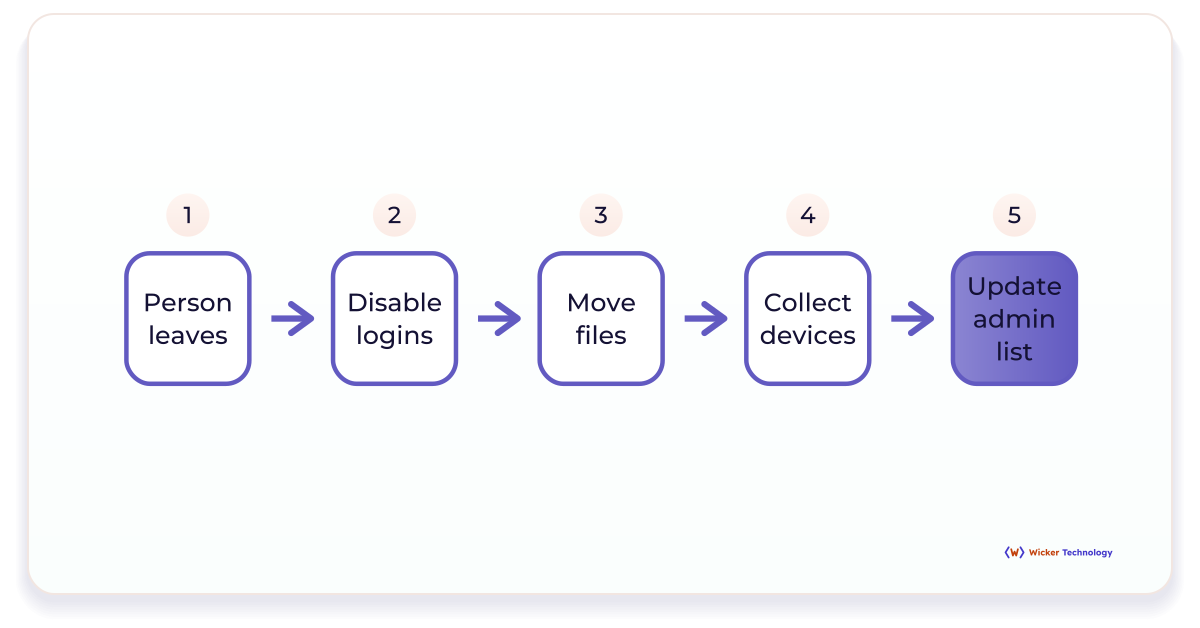
- List every business system and its admin owner.
- Remove accounts for anyone who left.
- Keep two admins on critical systems.
- Store domain and website logins somewhere the business controls.
Red flag: A former contractor still has admin access to your website.
2. Passwords and Multi-Factor Sign-In
CISA calls multi-factor authentication a simple way to strengthen accounts and recommends starting with email, file storage and remote access. Any second step is better than none, and an authenticator app beats a text message.
A password manager takes care of the other half. People reuse passwords because remembering fifty is impossible. Give them a tool that remembers for them.
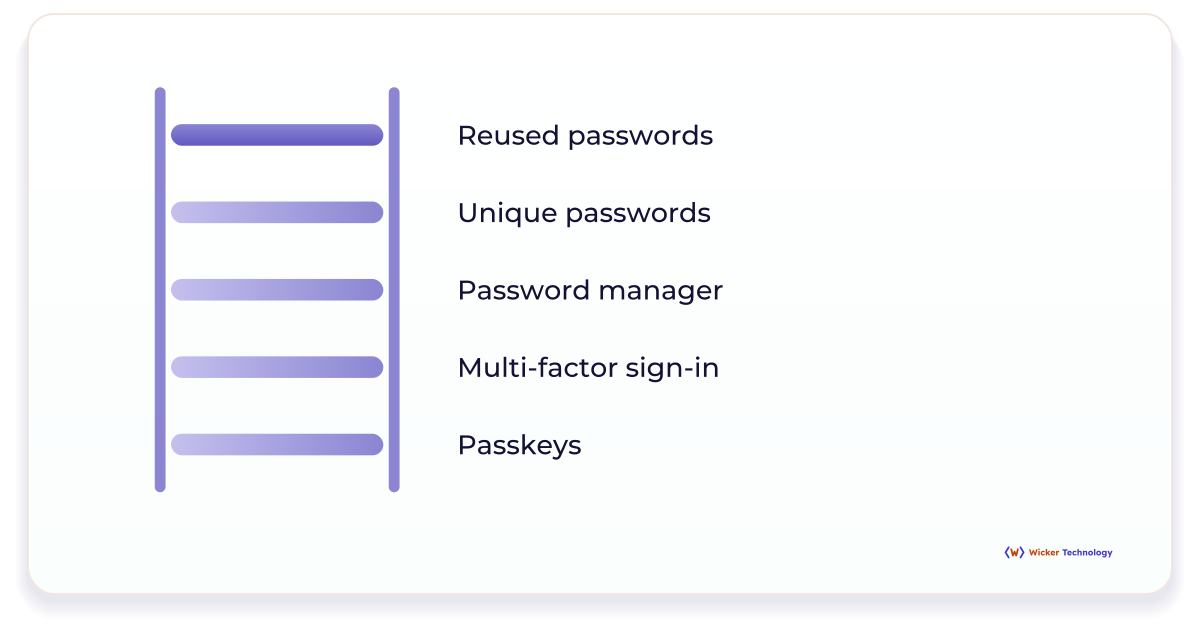
- Turn on multi-factor sign-in for email, banking and accounting.
- Roll out a password manager to the whole team.
- Ban shared logins for anything with customer data.
- Keep recovery codes in a safe place.
Red flag: The owner's email account has only a password.
3. Backups You Have Actually Restored
A backup is only useful when you can bring the data back. The SBA suggests backing up sensitive data regularly, with weekly copies to cloud storage as a baseline. I add one more step: restore a file twice a year and time it.
Cloud tools such as Microsoft 365 and Google Workspace keep your files available, which is different from a backup that protects against deletion or ransomware. Ask your provider exactly what is retained and for how long.
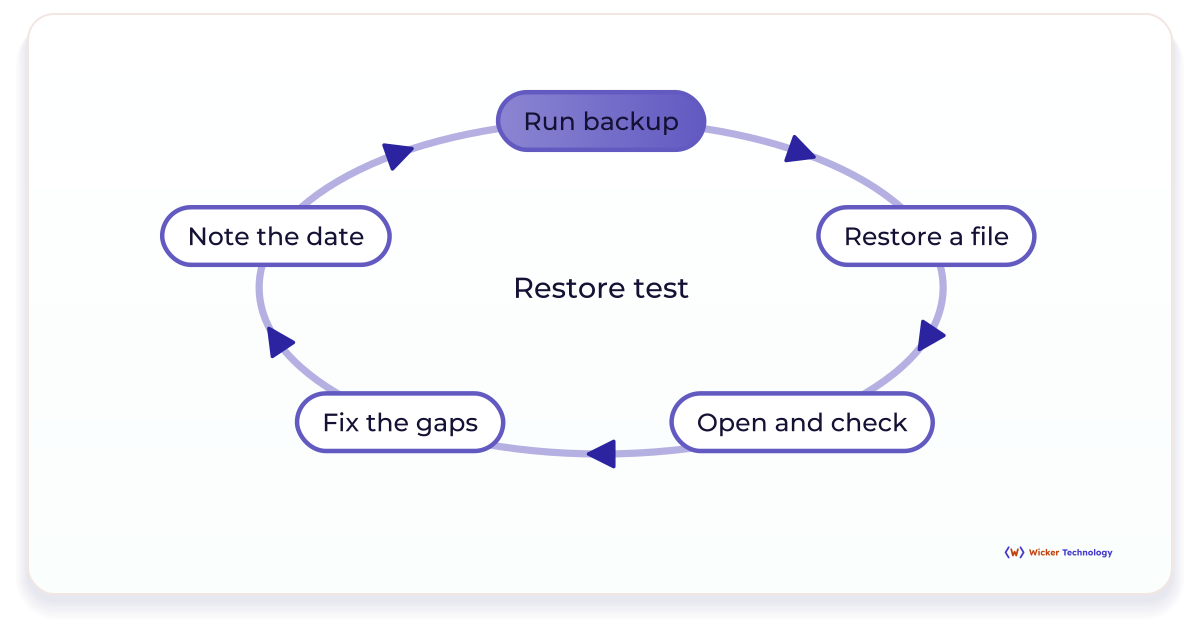
- Back up critical files automatically to a separate location.
- Include accounting, customer records and email.
- Restore one file or one mailbox twice a year.
- Write down who runs the restore.
Red flag: Nobody can say when the last backup ran.
4. Updates and Device Basics
Out-of-date software is an easy way in. The SBA recommends automatic updates, antivirus software and encryption. For a small team, this means a short, written standard for every laptop and phone that touches company data.
If staff use personal devices, require a screen lock and automatic updates, and make sure you can remove company access if a device is lost.
- Turn on automatic updates for operating systems and apps.
- Encrypt laptops and set screen locks.
- Keep a simple device list with owners.
- Replace hardware that no longer receives updates.
Red flag: A laptop with an unsupported operating system holds customer files.
5. Software and Subscriptions
List each tool, its owner, its monthly cost and its renewal date. A one-page sheet is enough. It shows you what you pay for, who uses it and where two tools do the same job.
Review it at least once a year, and put each renewal on the calendar 30 days ahead so you can cancel without a surprise charge. My small business software ranking helps with the replacements.
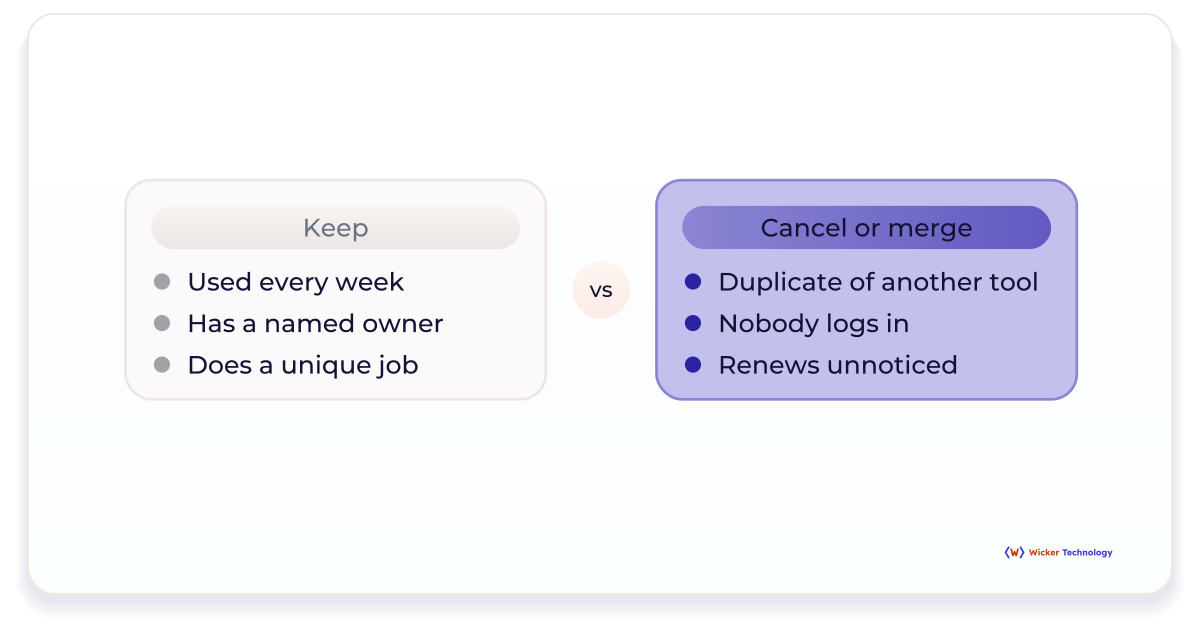
- Export all recurring software charges from your cards and bank.
- Assign an owner to every tool.
- Cancel anything unused for 60 days.
- Calendar renewals 30 days ahead.
Red flag: Two tools do the same job and both renew next month.
6. Customer and Business Data
Know where customer data lives: your CRM, email, spreadsheets, accounting tool and website forms. Pick one system of record for customers and make the others feed it.
A simple data map also helps with privacy questions. Which rules apply to you depends on your state and industry, so ask your attorney, and keep the map up to date.
- Choose one system of record for customer details.
- List each place customer data is stored.
- Limit access by role.
- Delete data you no longer need, within your retention rules.
Red flag: Customer lists are saved in personal spreadsheets.
7. Network and Remote Work
Secure the Wi-Fi in your office with a strong password, separate the guest network and keep the router firmware updated. The SBA also advises remote staff to connect through a VPN or another protected method when they reach company systems.
If most of your tools run in the cloud, the office network matters less than the sign-in. That is why points 1 and 2 come first.
- Use a strong Wi-Fi password and a separate guest network.
- Update router firmware.
- Set rules for public Wi-Fi.
- Use single sign-on or multi-factor access for remote work.
Red flag: The router still uses the password it shipped with.
8. Email Protection and Staff Awareness
Phishing remains the common entry point, and most attempts arrive by email. The FTC explains email authentication with SPF, DKIM and DMARC, which makes it harder for scammers to send mail that looks like it comes from your domain.
Train people with short, real examples. A 15 minute session twice a year does more than a long annual course.
- Set up SPF, DKIM and DMARC for your domain.
- Run a short phishing exercise each year.
- Give staff an easy way to report suspicious mail.
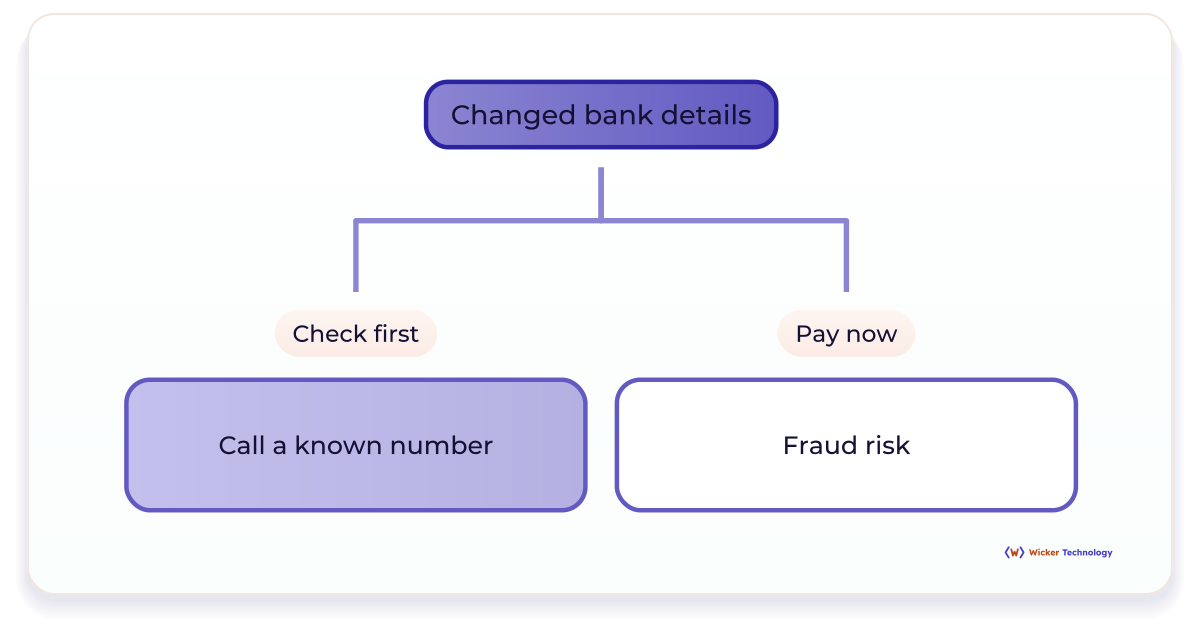
- Agree on a call-back rule for payment requests.
Red flag: An invoice with changed bank details gets paid without a call.
9. Support and Responsibility
Decide who fixes things. That might be a managed IT provider, a part-time freelancer or a tech-savvy colleague with a backup. What matters is that everyone knows who to ask and how fast to expect an answer.
Write the contact details on one page along with your vendors' support numbers. In a real outage, nobody wants to search an old email thread.
- Name a technology owner and a backup.
- Agree on response times with any outside provider.
- Keep vendor support contacts on one page.
- Hold a 30 minute monthly technology check-in.
Red flag: Only one person knows how the network is set up.
10. Plan and Incident Response
Write a one-page plan for the first hour of an incident: who to call, which accounts to lock, how to reach customers and where the backups are. The FTC has a data breach response guide for business that is a good model.
Add your cyber insurance details if you have them, and review the plan twice a year. If you want help with the bigger picture, a small business technology consulting call covers it.
- Write the first-hour steps on one page.
- List who to contact at your bank, insurer and provider.
- Store the plan outside your main systems.
- Practice the plan once a year.
Red flag: The only copy of the plan sits on the server that is down.
How to Run the Checklist With Your Team
The checklist works best as a short meeting, not a solo homework task. Book 90 minutes with whoever owns technology and one person who knows how the business really runs, and go through the ten points together. Answer each check with a plain yes or no, and write down who will fix each no.
Resist the urge to fix things during the meeting. Fixing is a separate task, and mixing the two makes the review drag. At the end, count the score and pick the three fixes with the biggest risk reduction for the smallest effort. Those go on the calendar this month.
| Point | Who usually owns it | How often to review |
|---|---|---|
| Accounts and access | Owner or office manager | Quarterly |
| Passwords and multi-factor | Technology owner | Twice a year |
| Backups | Technology owner or provider | Monthly check, twice a year restore |
| Updates and devices | Provider or technology owner | Monthly |
| Software and subscriptions | Owner or finance | Yearly, plus each renewal |
| Data | Operations lead | Yearly |
| Network and remote work | Provider | Twice a year |
| Email and staff awareness | Technology owner | Twice a year |
| Support | Owner | Yearly |
| Incident plan | Owner | Yearly |
Keep the filled-in checklist where the business controls it, such as a shared folder with limited access, and compare it with your next review. A rising score is the easiest way to show your team, your insurer or a customer that the work is paying off.
If you find the same gap two reviews in a row, treat that as a signal about ownership, not effort. The task probably has no named owner, or the owner has no time. Fix that first, and the item usually clears on its own.
What to Do After the Checklist
Turn each missed check into a task with an owner and a date. Do the cheap, fast ones first, because they build momentum. Items that need money, such as a new backup service, go on a short roadmap.
Many of the gaps match the problems described in small business technology challenges, and the direction of travel is covered in my piece on small business technology trends. Re-run the checklist after six months and compare scores.
Questions About the Small Business Technology Checklist
How Often Should I Review My Small Business Technology?
Run the full checklist once a year and the security items, backups and subscriptions twice. Put the dates in your calendar, because reviews that are not scheduled tend to disappear.
Which Checklist Items Should I Do First?
Accounts and access, multi-factor sign-in and backups. They cost little, take a few hours and protect against the problems that hurt most.
Can I Do This Checklist Without an IT Person?
Yes, most of it. Bring in help for network setup, device management and anything you cannot verify. A short consulting call can tell you where you stand.
How Long Does the Checklist Take?
A business with ten to twenty people can usually go through it in a day, with fixes spread over the following weeks. Larger teams need more time for access and device reviews.
What If I Fail Several Items?
Rank the failures by risk and effort, fix the top three this month and schedule the rest. Most businesses start with several gaps, and that is normal.
Do I Need Cyber Insurance?
It is worth discussing with your insurance broker, since requirements and prices vary. Insurers often ask about multi-factor sign-in, backups and updates, so this checklist helps you answer.
Where Can I Find Free Guidance?
The SBA, FTC, CISA and NIST all publish free small business cybersecurity resources. The links are listed at the end of this article.
Sources
- SBA: Strengthen Your Cybersecurity
- FTC: Cybersecurity for Small Business
- CISA: Require Multifactor Authentication
- NIST Small Business Cybersecurity Corner
Important: nothing in this article is legal, financial or tax advice. All figures are estimates from typical projects, so verify them with your own providers and advisers.
Was this useful?
We appreciate the feedback.
Paige Mulvaney
Paige leads the Wicker editorial team and works with the consultants who run the roadmaps, software selections, implementations and integrations to turn real client projects into practical guides. Her focus is plain-language advice on IT strategy, choosing business software and connecting systems so they work together. Every article she edits is checked against current vendor pricing and documentation before it is published.